Continue reading →
Showing posts with label Internet Tricks. Show all posts
Wednesday, September 19, 2012
Sunday, September 16, 2012
How to download torrent with Internet Download Manager(IDM)
First of all,you need to install IDM software on your computer.
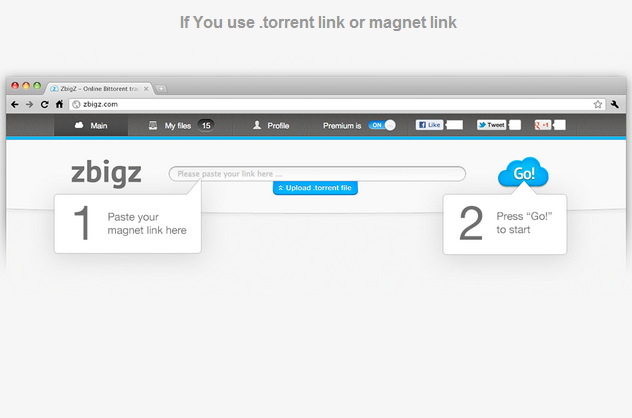
Go to http://www.zbigz.com.
Now copy a link to a torrent-file from any torrent-tracker and paste it to the input field of the upload box and hit the "GO!" button.
Click 'Upload' button which is below the input field of the upload box. Browse for torrent file on the computer and press 'GO'.
Saturday, September 15, 2012
How to write upside down on Facebook, Twitter, Myspace or Blog.
1.Go to http://www.fliptext.org.
2.Type the text in the upper Textbox and click the 'Flip Text' button.
Sunday, February 13, 2011
Popular Facebook Emotion Icons
Facebook is the best social utility that connects people with friends and others who work, study and live around them.As we all know ,Facebook has an instant chat client where you can chat real time with your friends. It's a great feature and also features some cool smileys.In the following table you can find the list of some popular emotions for the facebook chat with their keyword shortcut.
How to Backup blogspot Blog
Blogger Backup is a free utility from Codeplex to backup blogspot blogs.It has the ability to backup all of your post and comments and fully restore it .This utility is intended to be a simple utility to backup to local disk your Blogger posts.
TO DOWNLOAD THE SOFTWARE CLICK HERE
Tuesday, February 1, 2011
How to Add "You Might also like" widget to a blog
Linkwithin is a blog widget that appears under each post, linking to related stories from your blog archive.The widget is free and ad-free and takes a minute to get the widget up and running on your blog.This widget show similar posts to blog visitor which helps him in finding the same content and increase your blog traffic.It retrieve and index all stories from your blog archive, not just recent stories, making them accessible to new or casual readers of your blog who would not otherwise encounter them.
STEPS TO INSTALL LINKWITHIN WIDGET IN BLOGGER :
1.Go to www.linkwithin.com and enter the deatils related to the blog and click Get Widget!.
2. Click Install Widget to open Blogger in a new window and login to your blogspot account.
3.Select the blog(if you are having more than one blog) and click Add Widget.
4.Drag and Drop the LinkWithin box under the "Blog Posts" box.However,you can place it anywhere but it is recommended for better performance.
5.Click Save to save the changes.
STEPS TO INSTALL LINKWITHIN WIDGET IN BLOGGER :
1.Go to www.linkwithin.com and enter the deatils related to the blog and click Get Widget!.
2. Click Install Widget to open Blogger in a new window and login to your blogspot account.
3.Select the blog(if you are having more than one blog) and click Add Widget.
4.Drag and Drop the LinkWithin box under the "Blog Posts" box.However,you can place it anywhere but it is recommended for better performance.
5.Click Save to save the changes.
Sunday, January 30, 2011
Google Tips for Better Searching
1.EXCLUDE WORDS :
If you want to search for a particular term but you want to exclude a particular word,simply use "-" sign for the term you want to exclude.
For example : site promotion -backlinks
2.CALCULATOR :
You can use google online searching utility to do calculations.Type the operand between the operators and press the enter key.
3.DEFINATIONS :
To search for a particular defination on Google,use the "Define:" operator.For example Define:mapping
4.EXPLICIT PHRASE :
If you are searching for material on Polymorphism. Instead of just typing Polymorphism into the Google search box,it is better to search explicitly for the phrase. To do this, simply enclose the search phrase within double quotes.
If you want to search for a particular term but you want to exclude a particular word,simply use "-" sign for the term you want to exclude.
For example : site promotion -backlinks
2.CALCULATOR :
You can use google online searching utility to do calculations.Type the operand between the operators and press the enter key.
To search for a particular defination on Google,use the "Define:" operator.For example Define:mapping
4.EXPLICIT PHRASE :
If you are searching for material on Polymorphism. Instead of just typing Polymorphism into the Google search box,it is better to search explicitly for the phrase. To do this, simply enclose the search phrase within double quotes.
5.MUSIC OPERATOR :
If you want to search contents related to music only,use "Music:" operator.
6.SEARCH CONTENT ON A PARTICULAR SITE:
If you want to search for specific content on a particular website ,use the "site:www.sitename.com" modifier.
7.FILE TYPES :
You can use the "filetype:" modifier to search for a particular file format on the web.
8.SIMILAR WORDS:
If you want to include results that contain similar words or synonyms,use the "~" sign in front of the word you want to search.
Friday, January 28, 2011
How to Add 3D rotating Label cloud In a Blogspot blog
The script for the flash animated label cloud was initially written as a plugin for WordPress called WP-Cumulus."Blogumus" is an Flash based tag cloud widget developed by Amanda which uses scripts converted from Roy Tanck's WP Cumulus plugin for Wordpress.
STEPS TO INSTALL BLOGUMUS IN BLOGGER LAYOUT :
1.Go to Layout and click Edit HTML in your Blogger dashboard.
2.Search for the following line(or similar) in your Layouts Html.
<b:section class='sidebar' id='sidebar' preferred='yes'>
or
<b:section-contents id='sidebar-right-1'>
3.Paste the following code after given line :
<b:widget id='Label99' locked='false' title='Labels' type='Label'>
<b:includable id='main'>
<b:if cond='data:title'>
<h2><data:title/></h2>
</b:if>
<div class='widget-content'>
<script src='http://sites.google.com/site/bloggerustemplatus/code/swfobject.js' type='text/javascript'/>
<div id='flashcontent'>Blogumulus by <a href='http://www.roytanck.com/'>Roy Tanck</a> and <a href='http://www.bloggerbuster.com'>Amanda Fazani</a></div>
<script type='text/javascript'>
var so = new SWFObject("http://sites.google.com/site/bloggerustemplatus/code/tagcloud.swf", "tagcloud", "240", "300", "7", "#ffffff");
// uncomment next line to enable transparency
//so.addParam("wmode", "transparent");
so.addVariable("tcolor", "0x333333");
so.addVariable("mode", "tags");
so.addVariable("distr", "true");
so.addVariable("tspeed", "100");
so.addVariable("tagcloud", "<tags><b:loop values='data:labels' var='label'><a expr:href='data:label.url' style='12'><data:label.name/></a></b:loop></tags>");
so.addParam("allowScriptAccess", "always");
so.write("flashcontent");
</script>
<b:include name='quickedit'/>
</div>
</b:includable>
</b:widget>
4.Firstly preview the template and if installed correctly save the template.
DEFAULT PRESET VARIABLES OF BLOGUMUS :
CUSTOMIZING BLOGUMUS:
To customize the dimensions and background-color, modify the following line :
var so = new SWFObject("http://sites.google.com/site/bloggerustemplatus/code/tagcloud.swf", "tagcloud", "240", "300", "7", "#ffffff");
To customize the font color,modify the following line :
so.addVariable("tcolor", "0x333333");
To customize the font size,modify the following line :
so.addVariable("tagcloud", "<tags><b:loop values='data:labels' var='label'><a expr:href='data:label.url' style='12'><data:label.name/></a></b:loop></tags>");
This tutorial was adopted from Amanda's Tutorial.For more details click here.
STEPS TO INSTALL BLOGUMUS IN BLOGGER LAYOUT :
1.Go to Layout and click Edit HTML in your Blogger dashboard.
2.Search for the following line(or similar) in your Layouts Html.
<b:section class='sidebar' id='sidebar' preferred='yes'>
or
<b:section-contents id='sidebar-right-1'>
3.Paste the following code after given line :
<b:widget id='Label99' locked='false' title='Labels' type='Label'>
<b:includable id='main'>
<b:if cond='data:title'>
<h2><data:title/></h2>
</b:if>
<div class='widget-content'>
<script src='http://sites.google.com/site/bloggerustemplatus/code/swfobject.js' type='text/javascript'/>
<div id='flashcontent'>Blogumulus by <a href='http://www.roytanck.com/'>Roy Tanck</a> and <a href='http://www.bloggerbuster.com'>Amanda Fazani</a></div>
<script type='text/javascript'>
var so = new SWFObject("http://sites.google.com/site/bloggerustemplatus/code/tagcloud.swf", "tagcloud", "240", "300", "7", "#ffffff");
// uncomment next line to enable transparency
//so.addParam("wmode", "transparent");
so.addVariable("tcolor", "0x333333");
so.addVariable("mode", "tags");
so.addVariable("distr", "true");
so.addVariable("tspeed", "100");
so.addVariable("tagcloud", "<tags><b:loop values='data:labels' var='label'><a expr:href='data:label.url' style='12'><data:label.name/></a></b:loop></tags>");
so.addParam("allowScriptAccess", "always");
so.write("flashcontent");
</script>
<b:include name='quickedit'/>
</div>
</b:includable>
</b:widget>
4.Firstly preview the template and if installed correctly save the template.
DEFAULT PRESET VARIABLES OF BLOGUMUS :
Width : 240px
Height :300px;
Background color : white
Test color : grey
Font size : "12"
You can also change the default parameters as per your requirements.Height :300px;
Background color : white
Test color : grey
Font size : "12"
CUSTOMIZING BLOGUMUS:
To customize the dimensions and background-color, modify the following line :
var so = new SWFObject("http://sites.google.com/site/bloggerustemplatus/code/tagcloud.swf", "tagcloud", "240", "300", "7", "#ffffff");
To customize the font color,modify the following line :
so.addVariable("tcolor", "0x333333");
To customize the font size,modify the following line :
so.addVariable("tagcloud", "<tags><b:loop values='data:labels' var='label'><a expr:href='data:label.url' style='12'><data:label.name/></a></b:loop></tags>");
This tutorial was adopted from Amanda's Tutorial.For more details click here.
Sunday, January 23, 2011
Funny Google I'm feeling lucky Tricks
1.GOOGLE SPHERE : Type Google Sphere in the Google search bar and Click I'm Feeling Lucky.A new window will open and you will see all the objects on the google page flying in a spherical pattern.
2.GOOGLE GRAVITY : Type Google Gravity in the Google search bar and Click I'm Feeling Lucky.You will see a new window in which all the google letters fall down to the bottom of the screen and showing gravity effect.
3.EPIC GOOGLE : Type Epic Google in the Google search bar and Click I'm Feeling Lucky.Wait for a new window to open and you will see google letters becoming bigger and bigger.
4.GOOGLE PACMAN : Type Google Pacman in the Google search bar and Click I'm feeling lucky.You will see the Google homepage along with the pacman game.You can also play the game.
5.RAINBOW GOOGLE : Type Rainbow Google in the google search bar and Click I'm Feeling Lucky.A new page will open and you will see all the letters changing their colours.
2.GOOGLE GRAVITY : Type Google Gravity in the Google search bar and Click I'm Feeling Lucky.You will see a new window in which all the google letters fall down to the bottom of the screen and showing gravity effect.
3.EPIC GOOGLE : Type Epic Google in the Google search bar and Click I'm Feeling Lucky.Wait for a new window to open and you will see google letters becoming bigger and bigger.
4.GOOGLE PACMAN : Type Google Pacman in the Google search bar and Click I'm feeling lucky.You will see the Google homepage along with the pacman game.You can also play the game.
5.RAINBOW GOOGLE : Type Rainbow Google in the google search bar and Click I'm Feeling Lucky.A new page will open and you will see all the letters changing their colours.
Saturday, January 22, 2011
How to Unlock PDF file online
MAXIMUM FILE SIZE: 150MB
FOR MORE DETAILS, VISIT: http://freemypdf.com
How to Unzip/Unrar files online
Many times we are stuck with the problem when we download some file from internet and it is in the compressed format.If you do not have the software to extract the compressed file then you can also do it online.Wobzip is a online extractor which can also extract password protected files.It also scan the compressed files using an anti-virus scanner(bitdefender) so any infected files will be removed before you download them onto your computer.It gives you the ease to unzip your files in school, at work or anywhere as long as you have access to the Internet. No longer will you be limited by the inability to install programs onto admin-protected computers.
SUPPORTED FORMATS: 7z, ZIP, GZIP, BZIP2, TAR, RAR, CAB, ISO, ARJ, LZHCHM, Z, CPIO, RPM, DEB and NSIS
MAXIMUM FILE SIZE: 100MB
FOR MORE DETAILS,VISIT: http://www.wobzip.org
Sunday, January 16, 2011
How to Add email Signature in Gmail
E-mail signature acts as an information and marketing block that provides pertinent and important information about you or your company to anyone that corresponds with you via e-mail. They allow anyone that receives an e-mail from you to quickly locate an easy way to contact you or your business.
STEPS TO ADD GMAIL SIGNATURE :
1.Log on to your Gmail Account.
2.Select "Settings" in the upper right corner of the page.
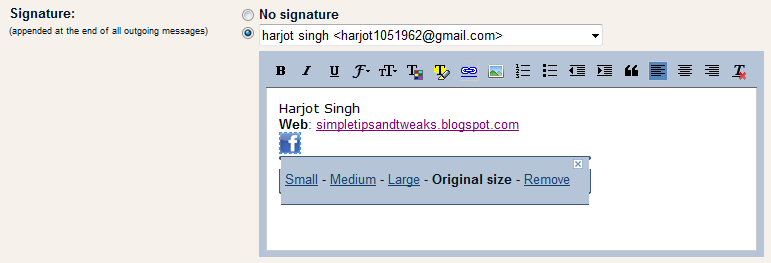
3.On the General tab, go to the Signature heading.Type the information you wish to have in your signature in the empty text box.To enter your website address ,use Link option and click Save Changes.
4.Go to the Labs tab and enable "Signature Tweaks".Click Save Changes to apply the changes.
STEPS TO ADD LOGO IN THE SIGNATURE:
1.Go to Google and search for the images for the logo you want in your signature. Click advanced image search and enter the image width and height of the logo as 22.For example to search Facebook logo ,enter facebook in the search bar(related to all of the words) and write "22" in both Width and Height section.Copy the URL of the image.
2.Log on to your Gmail Account.
3.Select "Settings" in the upper right corner of the page.
4. On the General tab, go to the Signature heading,Click on Insert Image in the signature section and paste the URL of the image.
5.Select the image and click on the Link option to link the image to required address.Click save changes.
6.Now go to Labs tab and enable "Inserting Images"and save the changes.
STEPS TO ADD GMAIL SIGNATURE :
1.Log on to your Gmail Account.
2.Select "Settings" in the upper right corner of the page.
3.On the General tab, go to the Signature heading.Type the information you wish to have in your signature in the empty text box.To enter your website address ,use Link option and click Save Changes.
4.Go to the Labs tab and enable "Signature Tweaks".Click Save Changes to apply the changes.
STEPS TO ADD LOGO IN THE SIGNATURE:
1.Go to Google and search for the images for the logo you want in your signature. Click advanced image search and enter the image width and height of the logo as 22.For example to search Facebook logo ,enter facebook in the search bar(related to all of the words) and write "22" in both Width and Height section.Copy the URL of the image.
2.Log on to your Gmail Account.
3.Select "Settings" in the upper right corner of the page.
4. On the General tab, go to the Signature heading,Click on Insert Image in the signature section and paste the URL of the image.
5.Select the image and click on the Link option to link the image to required address.Click save changes.
6.Now go to Labs tab and enable "Inserting Images"and save the changes.
Friday, January 14, 2011
How to Submit blog Sitemap to Google using Google Webmasters
A sitemap is a graphical representation of the structural and hierarchical linkage of a web site. A sitemap is often considered as unnecessary during website making process but sitemaps play a significant role in easier navigation and better visibility by search engines.If a site is new then using a sitemap can be vital to your success.A sitemap is extremely beneficial for the indexing of pages on the site.Sitemaps can also help in the event that you have broken internal links.
STEPS TO SUBMIT A SITEMAP TO GOOGLE:
1.Go to http://www.google.com/webmasters and sign in to webmasters tools.
2.In the site section ,click on the website whose sitemap you want to submit.
3.In the dashboard,click on "Submit a sitemap" listed under the Sitemaps section.
4.Click on "Submit a Sitemap".
5.Enter the sitemap address as http://blogname.blogspot.com/feeds/posts/default and click "submit sitemap" to submit the sitemap.
STEPS TO SUBMIT A SITEMAP TO GOOGLE:
1.Go to http://www.google.com/webmasters and sign in to webmasters tools.
2.In the site section ,click on the website whose sitemap you want to submit.
3.In the dashboard,click on "Submit a sitemap" listed under the Sitemaps section.
5.Enter the sitemap address as http://blogname.blogspot.com/feeds/posts/default and click "submit sitemap" to submit the sitemap.
Tuesday, January 4, 2011
How to easily open blocked sites
1.Use the IP address instead of domain name:
Use the IP address instead of the URL.for example if you want to access www.facebook.com,instead of typing the URL just type the IP address.You can find the IP address by using the ping utility. To find the IP address of website follow the steps:
Now 66.220.146.32 is the IP address of the website.
Use the IP address instead of the URL.for example if you want to access www.facebook.com,instead of typing the URL just type the IP address.You can find the IP address by using the ping utility. To find the IP address of website follow the steps:
- Go to start menu and click run.
- In the run option,type "cmd" to open the command prompt.
- Type "ping" and the name of the website.for example ping www.facebook.com and press enter.It will display a result similar to the following
Now 66.220.146.32 is the IP address of the website.
Note that many websites do not reply to ping command.In case the ping utility fails,find the IP address online via www.whatsmyip.org.
2.Use online translation services:
This is the best technique to access almost all blocked websites.These translation services can be used as a web proxy.Yahoo and Google provide the best translation services.Just enter the URL of the blocked site and translate it into any language.You can later retranslate the website in the original language.Given below is a list of most frequently used translation services:
3.Use proxy sites:
Many sites enable to surf the internet anonymously.Such websites hide the original IP address and show another IP which easily bypass the restriction.
Popular proxy sites are:
http://proxy.org
http://www.bypas.in
4.Use hotspot shield:
Hotspot shield is a free software.It acts as a protective shield and also hides IP address for online privacy.It uses VPN technology and is easy to install and use.Click on the link given below to download hotspot shield:
http://hotspotshield.com
5.Receive a website by email:
This method is not very effective as it fails in case of large websites but one can use it for small websites.web2mail is a website which send websites as email.
6.Use URL shortening websites:
Websites such as snipurl and tinyurl provide URL shortening services.Just enter the URL address of the blocked website and get the alternative URL address of that website.This alternative address easily bypass the restriction.
7.Use Google cache:
Use google cache feature to bypass blocked sites.Google takes a snapshot of each page it examines and stores that version as a back-up.To use the google cache just type "cache:www.websitename.com" in the google search bar.
8.Using TOR distributive proxy:
TOR is an advanced proxy server which uses multiple anonymous servers for a single web address.It is a free software and help you defend against a form of network surveillance.It prevents the sites you visit from learning your physical location .Click on the link for more information:
http://www.torproject.org/index.html.en
http://www.bypas.in
4.Use hotspot shield:
Hotspot shield is a free software.It acts as a protective shield and also hides IP address for online privacy.It uses VPN technology and is easy to install and use.Click on the link given below to download hotspot shield:
http://hotspotshield.com
5.Receive a website by email:
This method is not very effective as it fails in case of large websites but one can use it for small websites.web2mail is a website which send websites as email.
6.Use URL shortening websites:
Websites such as snipurl and tinyurl provide URL shortening services.Just enter the URL address of the blocked website and get the alternative URL address of that website.This alternative address easily bypass the restriction.
7.Use Google cache:
Use google cache feature to bypass blocked sites.Google takes a snapshot of each page it examines and stores that version as a back-up.To use the google cache just type "cache:www.websitename.com" in the google search bar.
8.Using TOR distributive proxy:
TOR is an advanced proxy server which uses multiple anonymous servers for a single web address.It is a free software and help you defend against a form of network surveillance.It prevents the sites you visit from learning your physical location .Click on the link for more information:
http://www.torproject.org/index.html.en
Subscribe to:
Posts (Atom)