Saturday, January 1, 2011

Easy way To lock/hide Folders in Windows

19 comments
Many tips regarding locking a folder in windows is available on the internet.Most easy and effective way to lock a folder is by using "password folder".The locked data cannot be read,seen and modified.

KEY BENEFITS:


1.It is safe,secure and is free of cost.
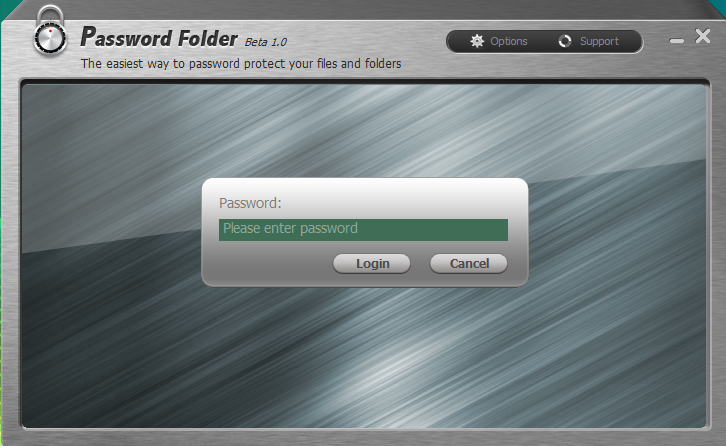
2.It not only lock the folder but also hides it.

3.It cannot be uninstalled without entering the correct password.

4.It supports drag and drop feature i.e. you can easily lock the folder by just dragging it.

5.Provides various lock options for different level of security.

6.User friendly interface.

TO DOWNLOAD THE SOFTWARE CLICK ON ONE OF THE LINK GIVEN BELOW:


FOR MORE INFORMATION REGARDING THE SOFTWARE CLICK ON THE LINK GIVEN BELOW:
Continue reading →
Friday, December 31, 2010

Resize a partition on windows 7 or vista

0 comments
To resize a partition ,use the windows built-in disk management tool


TO SHRINK A PARTITION IN WINDOWS :

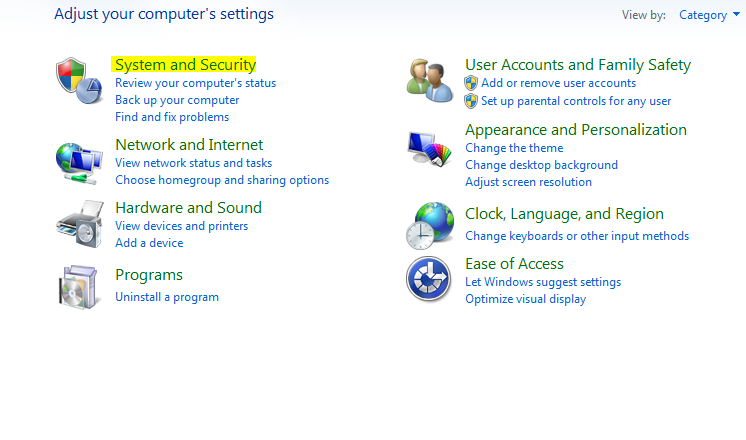
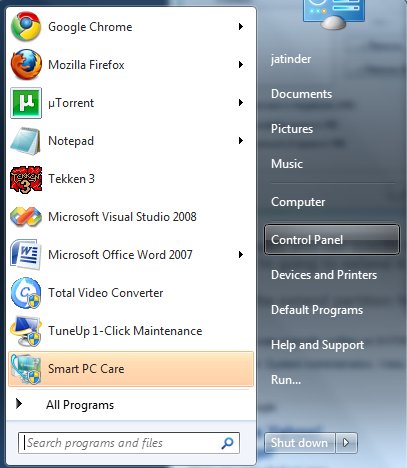
1.Go to the start menu and click on the control panel.


2.In the control panel,select system and security.

3.In the administrative tools,select create and format hard disk partitions.


Disk management dialog box will appear.


4.In the Disk Management screen,right-click on partition which you want to shrink and select shrink volume.


5.In the shrink dialog box ,enter the amount you want to shrink and click shrink.


TO RESIZE A PARTITION IN WINDOWS:


1.Go to the start menu and click on the control panel.


2.In the control panel,select system and security.


3.In the administrative tools,select create and format hard disk partitions.


4.In the disk management screen ,delete a partition which you dont need anymore.To delete a partition right click on the volume you want to delete and click delete volume.


5.Confirm the deletion and press "yes".


6.The volume has now been deleted,but not the partition.To delete the partition ,right click on the deleted volume and select delete partition.


7.Select "yes" to confirm.An unallocated space has been created which can be used to extend the C drive.


8.To extend the C drive,right click on the C drive and select extend volume.


9.Extend volume wizard dialog box will appear.click on the next button.


10.Then press finish.


Continue reading →
Protected by Copyscape Original Content Check
Related Posts Plugin for WordPress, Blogger...

Labels